
Every email list goes bad. Slowly, quietly, and it's not your fault.
People change jobs. They abandon old inboxes. They mistype their address on your form. A list can lose a big chunk of its good addresses in a single year.
The result? More bounces, more spam folders, and a bill for subscribers who will never read a word.
Here's exactly how to clean your email list in 10 simple steps. No jargon, just the process.
Why Cleaning Your Email List Matters
Gmail, Outlook and Yahoo watch how people react to your emails.
When lots of your emails bounce or get marked as spam, they start to doubt you. And then your emails go to spam for everyone, including the subscribers who love you.
Google's sender rules ask bulk senders to keep spam complaints under 0.1% and never let them reach 0.3%. That's a tiny margin. A dirty list can blow through it in one send.
There's a money side too. Most email platforms charge by the number of contacts. Every dead address is money you pay every month for nothing.
And there's a ban risk. Autoresponders and SMTP services often suspend accounts that import lists with high bounce rates.
Signs Your List Needs a Clean
- Your bounce rate is creeping up after each campaign.
- Opens and clicks are sliding even though your emails haven't changed.
- More people are hitting the spam button.
- Your emails land in Promotions or Spam more often.
- You haven't cleaned the list in six months, or ever.
- You're about to move to a new email platform.
Even one of these is a good reason to start today.
How to Clean Your Email List, Step by Step
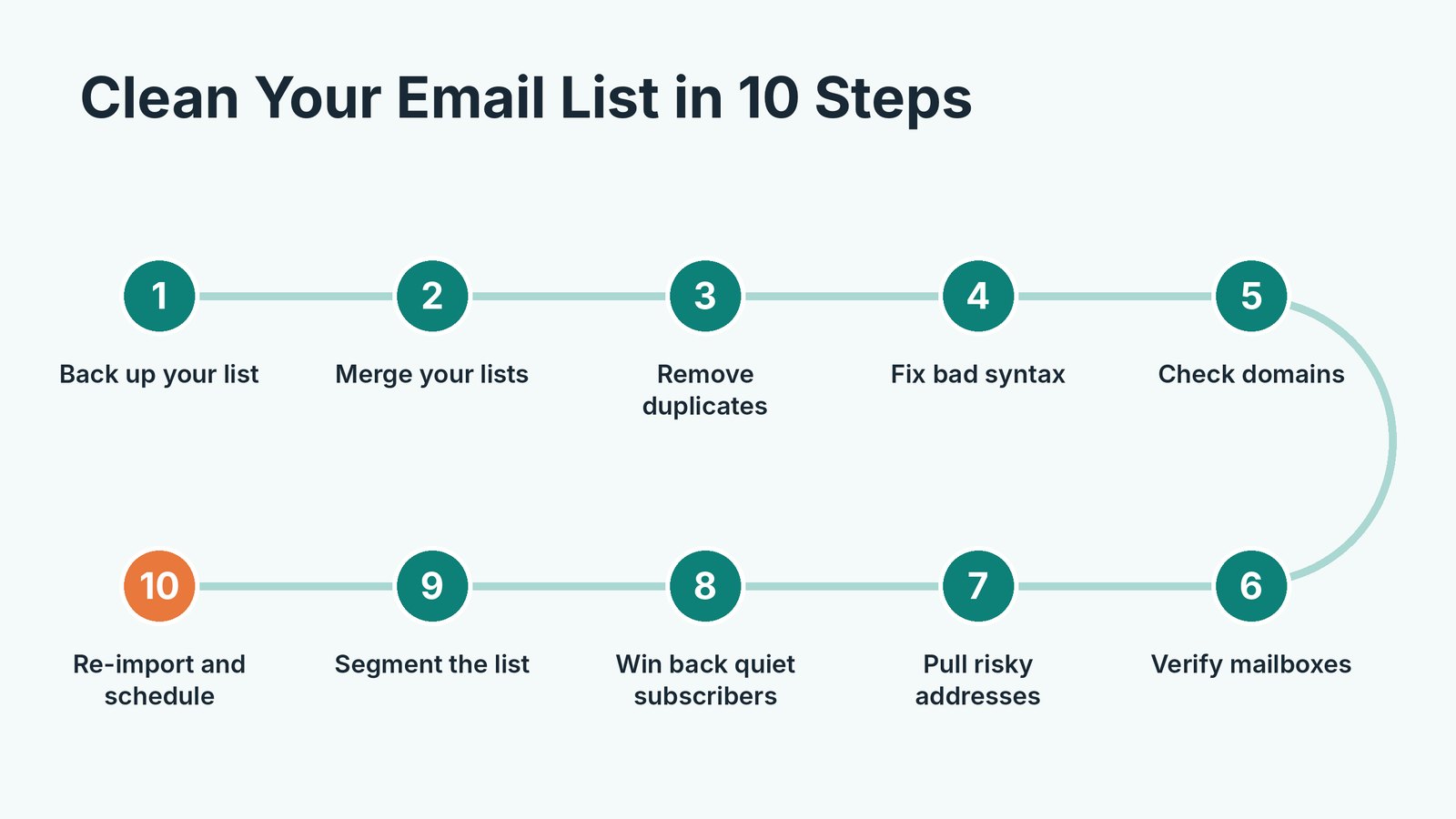
Follow these in order. Each step makes the next one faster.
Step 1. Export and Back Up Your Whole List
Before you delete a single address, export everything as a CSV from your email platform.
Save an untouched copy in a safe folder and name it with today's date. If anything goes wrong, you can always start again.
Export the extra fields too, like signup date, last open, last click and source. You'll need them in Step 7.
Step 2. Merge Your Lists Into One Working File
Many people have more than one list. A newsletter list, a webinar list, a list from a launch, a list of buyers.
Put them together into one working file so you can clean everything at once and spot the same person across lists. Keep a column that shows where each address came from.
Step 3. Remove Duplicates
Duplicates sneak in when people sign up twice or when lists get merged.
They mean the same person gets your email two or three times. That's annoying, and annoyed people click the spam button.
Remove exact duplicates first. Then look for the same address in different cases, like [email protected] and [email protected]. They're the same inbox.
Step 4. Fix or Remove Bad Syntax
Some addresses simply can't work.
Missing @ signs. Spaces in the middle. Two dots in a row. Commas instead of dots. Domain typos like gmial.com, yaho.com or hotmial.com.
If the typo is obvious, fix it. If you're not sure, remove it. A guess that bounces is worse than no address at all.
Step 5. Check That Each Domain Can Receive Email
Every email address ends in a domain, the part after the @.
Some of those domains no longer exist. Companies shut down, rebrand or let their website lapse. If the domain has no working mail server, every email you send there will bounce.
A domain check looks for the mail server records. Any address on a dead domain can go.
Step 6. Verify That Each Mailbox Exists
A working domain doesn't mean a working inbox.
When someone leaves a company, their work address usually gets switched off while the company domain stays alive. Mailbox verification asks the receiving mail server whether the address exists, without sending a real email.
It isn't perfect. Some servers accept everything and some hide the answer. Mark those as risky rather than deleting them straight away.
Step 7. Remove Role Addresses, Spam Traps and Throwaway Emails
Role addresses like info@, sales@, support@ and admin@ go to shared inboxes. Nobody personally signed up, so they rarely engage and often complain.
Spam traps are addresses used to catch senders with poor list habits. Hitting one can hurt your sender reputation fast.
Disposable emails come from throwaway services that delete the inbox after a few minutes. They were never real subscribers.
We explain the difference between these in our guide to email scrubbing.
Step 8. Win Back the Quiet Subscribers
Here's where many people get it wrong. They delete everyone who hasn't opened in a while.
Don't rush.
Open tracking isn't reliable anymore. Apple Mail and some privacy tools load images automatically, which fakes opens, while others block them, which hides real ones. So look at clicks, replies and purchases too.
Send people who've been silent for six months a short re-engagement series. Two or three emails. Ask if they still want to hear from you and make it easy to say yes.
Whoever stays silent after that can go. Your list gets smaller, but much healthier.
Step 9. Segment the Clean List
Before you import the list back, split it into useful groups.
Highly engaged readers. Recent buyers. New subscribers. People from one source or one region.
Segmented emails get better results because people receive emails that fit them. And if one segment starts to bounce or complain, you'll spot it quickly instead of hurting the whole list.
Step 10. Re-import and Set a Cleaning Schedule
Save each segment as a clean CSV and import it back into your autoresponder.
Then put the next cleaning date in your calendar. A list you clean once goes bad again. A list you clean on a schedule stays healthy.
Clean Your List in Minutes With List Janitor
You can do all ten steps by hand with a spreadsheet. It just takes hours, and the domain and mailbox checks are hard to do manually.
That's why we built List Janitor. It's desktop software for PC and Mac that handles most of this process for you.
- Steps 2 and 3. Merge lists, remove duplicates across several lists and find addresses that are common or unique.
- Step 4. Spot broken and badly formatted addresses.
- Step 5. Check that each domain has a valid mail server.
- Step 6. Verify that each address exists using SMTP checks.
- Step 7. Remove role emails and spam traps.
- Step 9. Filter, search and create segments and sub-lists (segmenting is in the Pro version).
- Step 10. Save clean CSVs that import into any autoresponder or SMTP service.
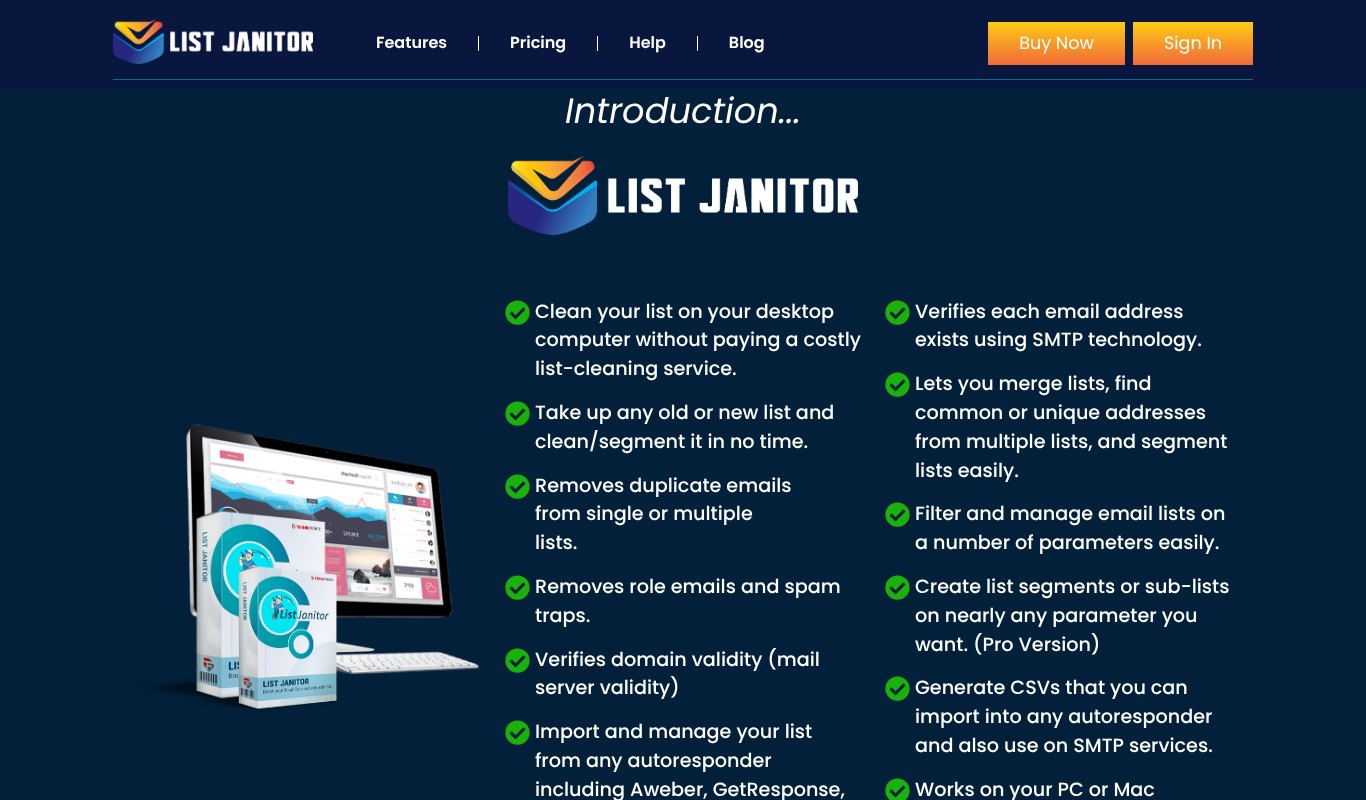
It works with lists from any autoresponder, including Aweber and GetResponse, through a simple CSV file.
Because it runs on your own computer, you don't pay a cleaning service every time you want a clean list. And your subscribers' data stays with you.
Right now List Janitor is a one-time payment of just $9. Most online cleaning services charge more than that for a single list of a few thousand emails.
Want to compare other options first? We tested the best tools in our list of the 11 best email list cleaners.
A Walkthrough With Example Numbers
Let's make this real. Here's how a clean might look for a made-up list of 10,000 subscribers that hasn't been touched in a year.
The numbers are an example, not a promise. Every list is different. But the shape is very typical.
| Step | Removed | Left on the List |
|---|---|---|
| Start | 10,000 | |
| Duplicates | 400 | 9,600 |
| Bad syntax and typos | 150 | 9,450 |
| Dead domains | 350 | 9,100 |
| Mailboxes that no longer exist | 700 | 8,400 |
| Role addresses, traps and throwaways | 300 | 8,100 |
| Silent after the win-back emails | 900 | 7,200 |
So 10,000 becomes 7,200. That feels like a loss at first.
It isn't. Those 2,800 addresses were bouncing, sitting in dead inboxes or ignoring you completely. Removing them means your bounce rate drops, your open and click rates go up, and Gmail starts trusting you again.
And if your platform charges by contacts, you've just cut your bill by more than a quarter.
The best part? The emails you send next will reach more real people than before, even though the list is smaller.
What a Good Clean Takes Out
Quick recap, so you can check your own process.
- Duplicates. The same address twice or more.
- Broken syntax. Addresses that can't technically work.
- Dead domains. No mail server behind them.
- Missing mailboxes. Addresses that no longer exist.
- Role addresses. Shared inboxes nobody personally owns.
- Spam traps and throwaway emails. The ones that hurt your reputation.
- Inactive subscribers. But only after a fair win-back try.
What to Do Right After Cleaning
Don't blast the whole clean list the next day.
Send your first few campaigns to your most engaged segment first. Good opens and clicks from them tell Gmail and Outlook that your emails are wanted. Then add the other segments over the next week or two.
Watch your bounce rate and spam complaints after each of these sends. If both stay low, you're in great shape.
How Often Should You Clean Your Email List?
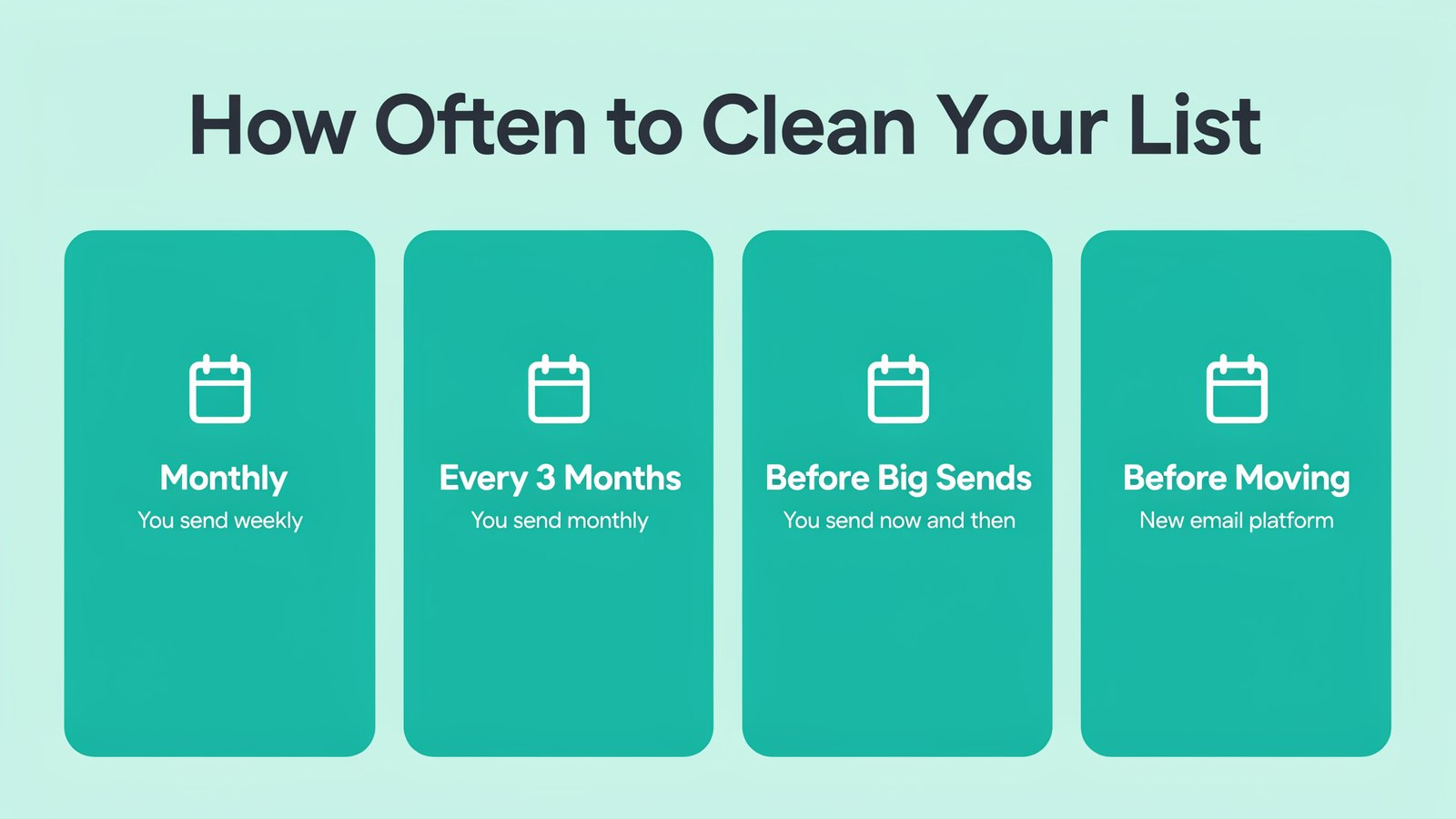
There's no magic number, but this rule of thumb works for most people.
- Send weekly or more? Clean every month.
- Send monthly? Clean every three months.
- Send now and then? Clean before every big campaign.
- Moving platforms? Always clean before you import.
And watch your bounce rate after every send. If it goes above 2%, don't wait for the calendar. Clean now.
How to Keep Your List Clean Between Cleanings
Cleaning is easier when less junk gets in to begin with.
- Use double opt-in so people confirm their address before joining.
- Add a simple bot check to your signup forms.
- Block disposable email services at signup.
- Never buy or rent lists. They're full of exactly the addresses you're trying to remove.
- Make unsubscribing easy. An unsubscribe is far better than a spam complaint.
- Remove hard bounces right away after each campaign.
Common Email List Cleaning Mistakes
- Skipping the backup. One wrong filter and good subscribers are gone for good.
- Deleting by opens alone. Privacy features make open data unreliable. Check clicks and sales too.
- Cleaning once and forgetting. Lists decay every month.
- Keeping every role address. A few are fine for B2B, but most just drag down engagement.
- Fearing a smaller list. A smaller list of real readers earns more than a big list of ghosts.
Frequently Asked Questions
How do I clean my email list for free?
You can do the basic steps in a spreadsheet. Remove duplicates, fix typos and delete role addresses by hand. Domain and mailbox checks are hard without software, which is where a low-cost tool like List Janitor helps.
Will cleaning my list lower my subscriber count?
Yes, and that's a good thing. The addresses you remove weren't reading your emails. What's left opens, clicks and buys more.
What is the difference between list cleaning and email verification?
Verification checks whether an address can receive mail. Cleaning is the bigger job. It includes verification plus removing duplicates, role addresses and inactive subscribers, then organizing what's left.
What is a good bounce rate?
Under 2% is healthy. Under 1% is great. Above 2% means it's time to clean.
Should I delete inactive subscribers?
Not straight away. Send a short win-back series first. If they still don't respond after that, remove them.
Is it safe to clean my list on my own computer?
Yes. With desktop software like List Janitor, your list never has to be uploaded to an outside cleaning service, so your subscribers' data stays with you.
Final Thoughts
A clean list isn't about having fewer subscribers. It's about having real ones.
Back up. Merge. Remove duplicates and broken addresses. Check domains and mailboxes. Pull the risky ones. Win back the quiet ones. Segment, re-import, and put the next clean on your calendar.
If you want to do most of these steps in minutes on your own computer, get List Janitor for a one-time $9.